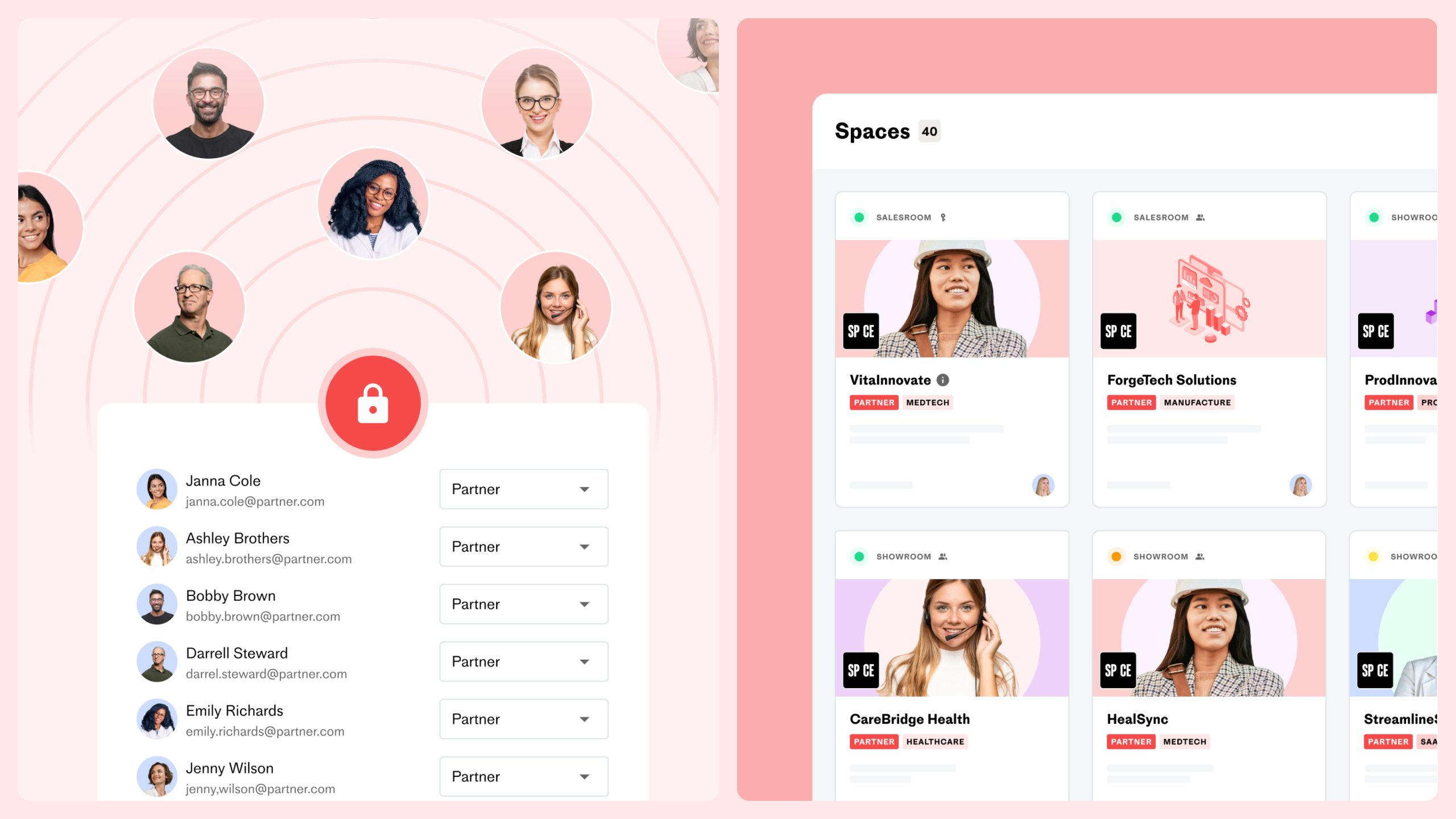
When your organization has installed the Hubspot integration, you can automatically create a space when you create a deal. With the integrations for Google Calendar and Outlook both meetings and participants will be synched to the Hubspot deal, and To-do:s in a space will be added as tasks in the deal.
Create a deal with a space connected to it
- In HubSpot go to Sales > Deals > Create Deal
- Give your deal a name and add the necessary deal information
- From the dropdown “Space Template”, choose the template you want to create a space from and give it a title
- Press save
- The newly created space will be visible in the homepage when you log into SP_CE the next time
- Alternatively you have a link to the space in the bottom right corner of the deal page in the card called “SP_CE”

Connect your calendar to Hubspot and SP_CE
Connect your calendar to Hubspot
Meetings in SP_CE are synchronized to a deal in Hubspot via the calendar integration.
- In Hubspot go to your profile settings by clicking the avatar icon on the top right
- Click “Profile & Preferences” > “Calender” tab
- Scroll down to find the”Connect your calendar” button
- In the popup choose which calendar you want to connect (Outlook or Google)
- Follow the steps to give Hubspot access to sync meetings with your calendar

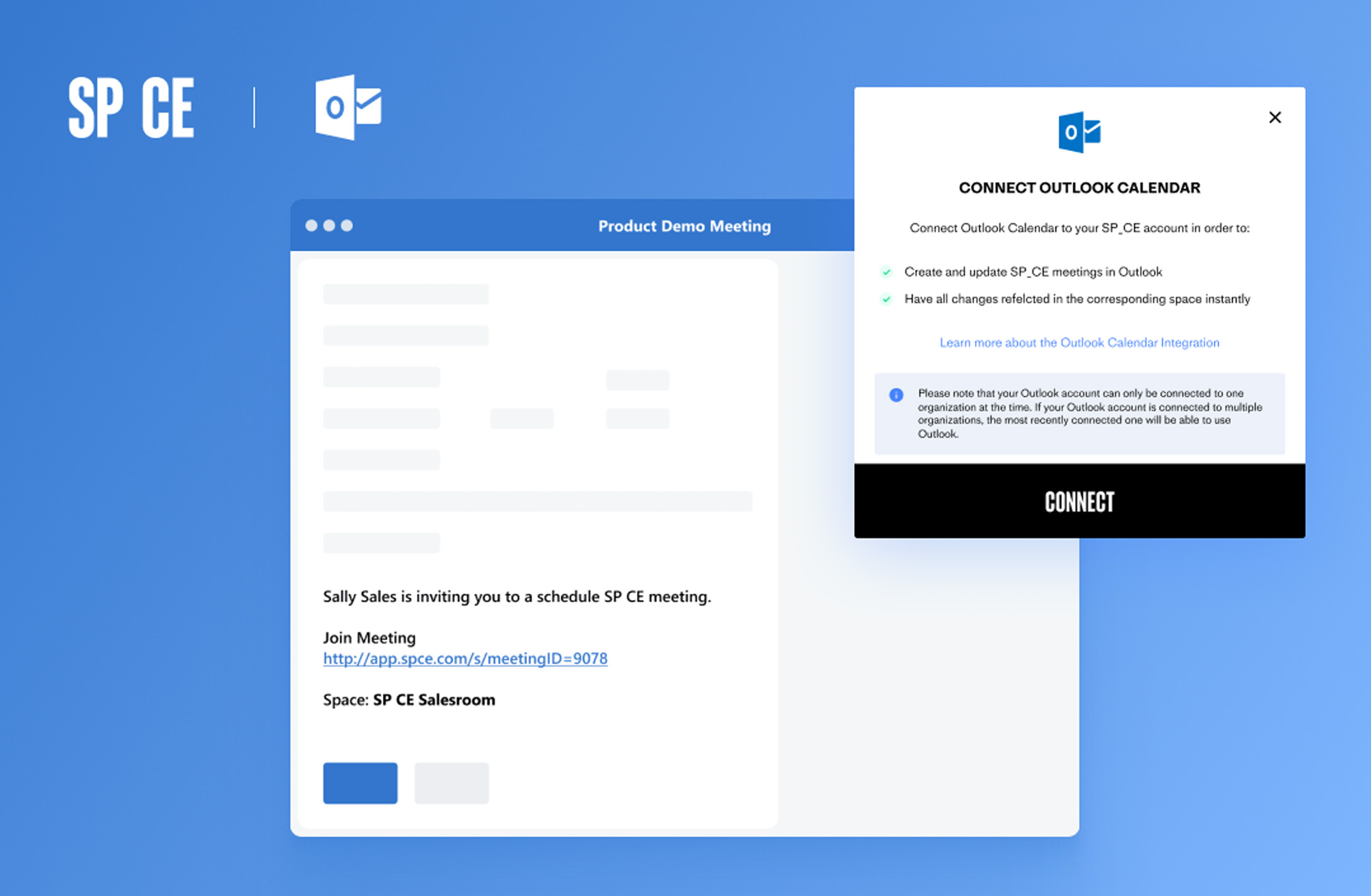

Activate the Outlook or Google Calendar integration for SP_CE
You can choose to either use a webhook or a plugin to integrate your Outlook or Google Calendar to SP_CE. Follow the steps in one of these tutorials to set it up:
Three options to schedule a SP_CE meeting
1. Create a meeting in space
Make sure to send the invite via the calendar to have it added to the deal
- Create the meeting, add date, time, agenda activities and participants
- Click the “Invite” button
- In the popup choose which calendar you want to use (Outlook or Google)
- Click next to open your calendar (the first time you have to authorize the integration)
- Send the invitation (at least one participant in the meeting invite must be a contact in the deal)


2. Create a meeting in Outlook with the sp_CE plugin
- Click the “New event” button in Outlook Calendar
- In the popup, give the meeting a title
- Set date and time for the meeting
- Select participants for your meeting from your contact list or by typing an e-mail address (at least one participant must be a contact in the deal)
- Open the SP_CE plugin by clicking the three-dots-menu to the top right on the screen and choose which space and meeting templates to use
- Click “Add to meeting”
- Click “Save” and confirm to send the invite
Note: If you make any changes to the meeting details you need to press “update” in the SP_CE plug in before pressing send in Outlook.
Update an existing meeting
- Find the meeting in your Outlook calendar
- Make the updates to the invitation
- Open the SP_CE plugin (you might have to log in if you have not used it for a while)
- Click update in the SP_CE plugin
- Click send in Outlook to save the changes
3. Create a meeting in Google Calendar with the SP_CE add-in
- Click the “Create” button in Google Calendar
- Select “Event”
- In the popup, give the meeting a title
- Set date and time for the meeting
- Add participants to your meeting (at least one participant needs to be a contact in the deal)
- Open the SP_CE plugin, choose which space and meeting templates to use
- Click “Add to meeting”
- Click “Save” and confirm to send the invite
Note: If you make any changes to the meeting details you need to press “update” in the SP_CE plug in before pressing send in Google Calendar.
Update an existing meeting
- Find the meeting in your Google calendar
- Click the pen icon and make the updates to the invitation
- Open the SP_CE plugin (you might have to log in if you have not used it for a while)
- Click update in the SP_CE plugin
- Click send in Google Calendar to save the changes


View updates in the deal
Go back to the deal in HubSpot where you can see that the meeting and participants have been added.
Create a to-do in the space that is added as a task in the deal
- In the space, go to the to-do tab
- Click the “Add” button to add a new to-do
- Give the to-do a title, assign a responsible participant and set a due date
- Press the “Save” button
- Flip over to HubSpot and refresh your browser. You will now find the to-do added as a “Task” in your deal
- Head back to the space if you want to update the to-do, changes will be translated to the task in the deal

Summary of what the integration can do
If you prefer visual images over written text, this section is for you. The infographic serves as a cheat sheet for what scenarios and actions are supported in the SP_CE HubSpot integration.