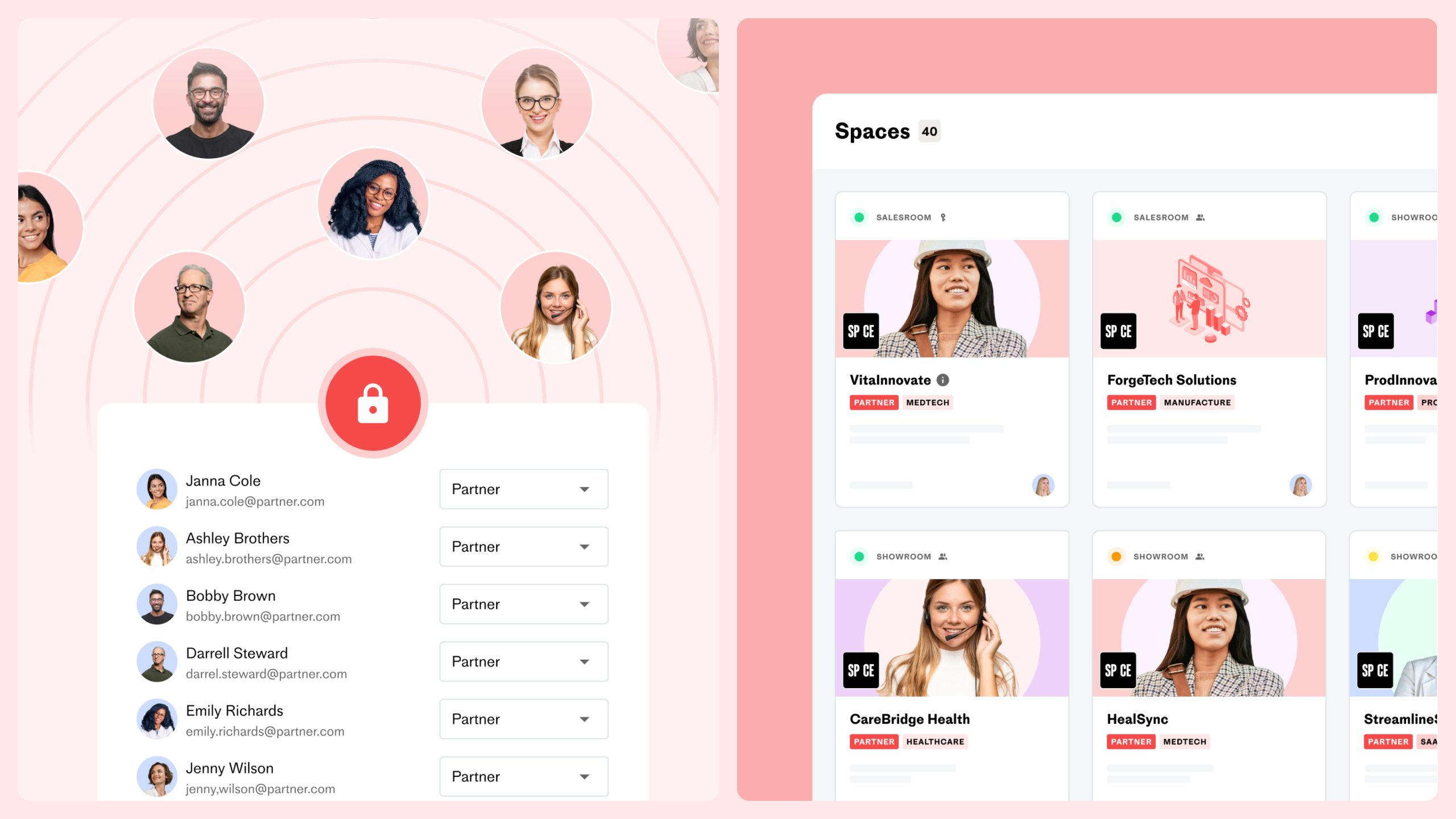
Admins can centrally add and manage global content that all users can easily find and use in spaces and templates.
This will make file management in your organization smooth and ensure everyone uses the correct version of a specific document or file.
For admins
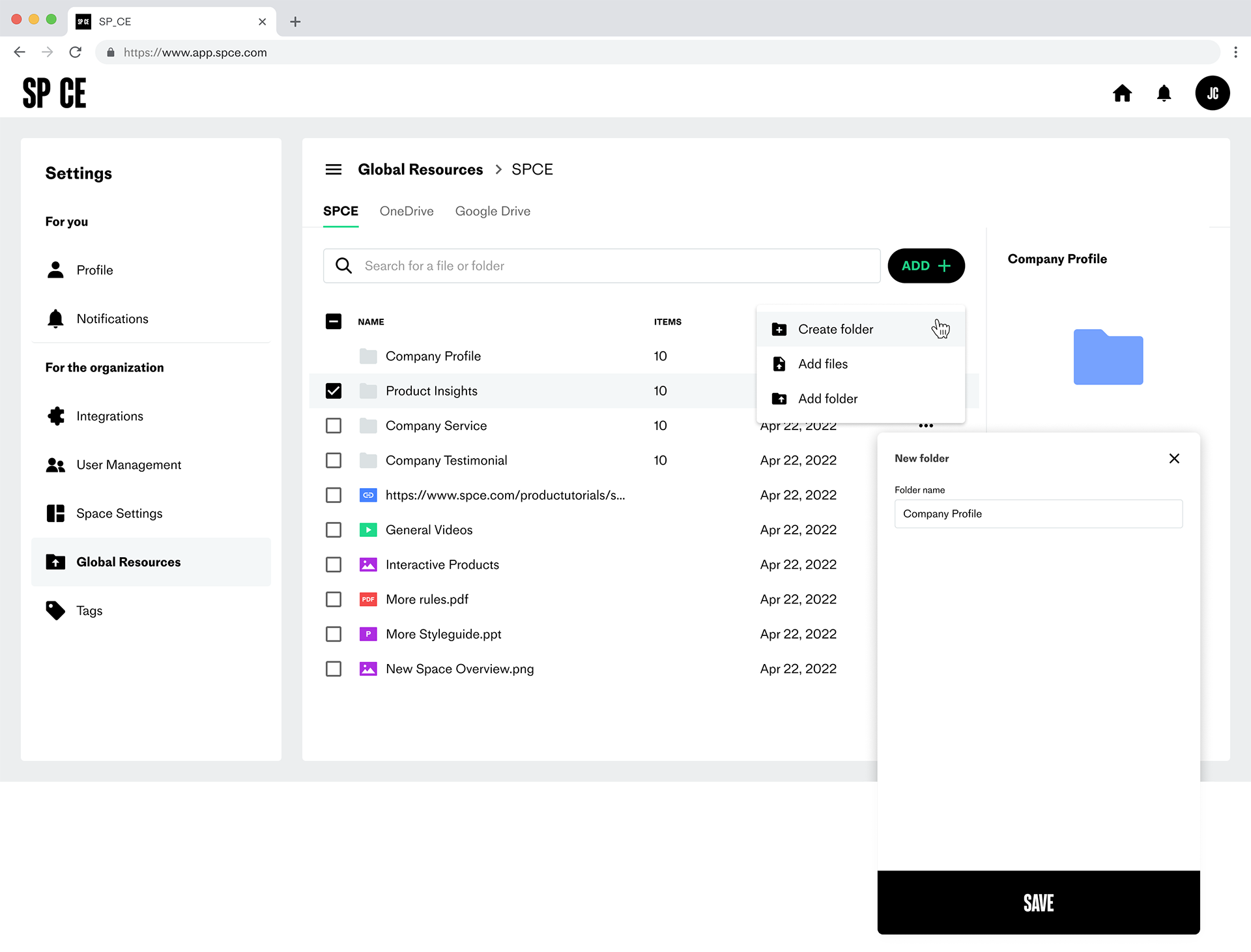
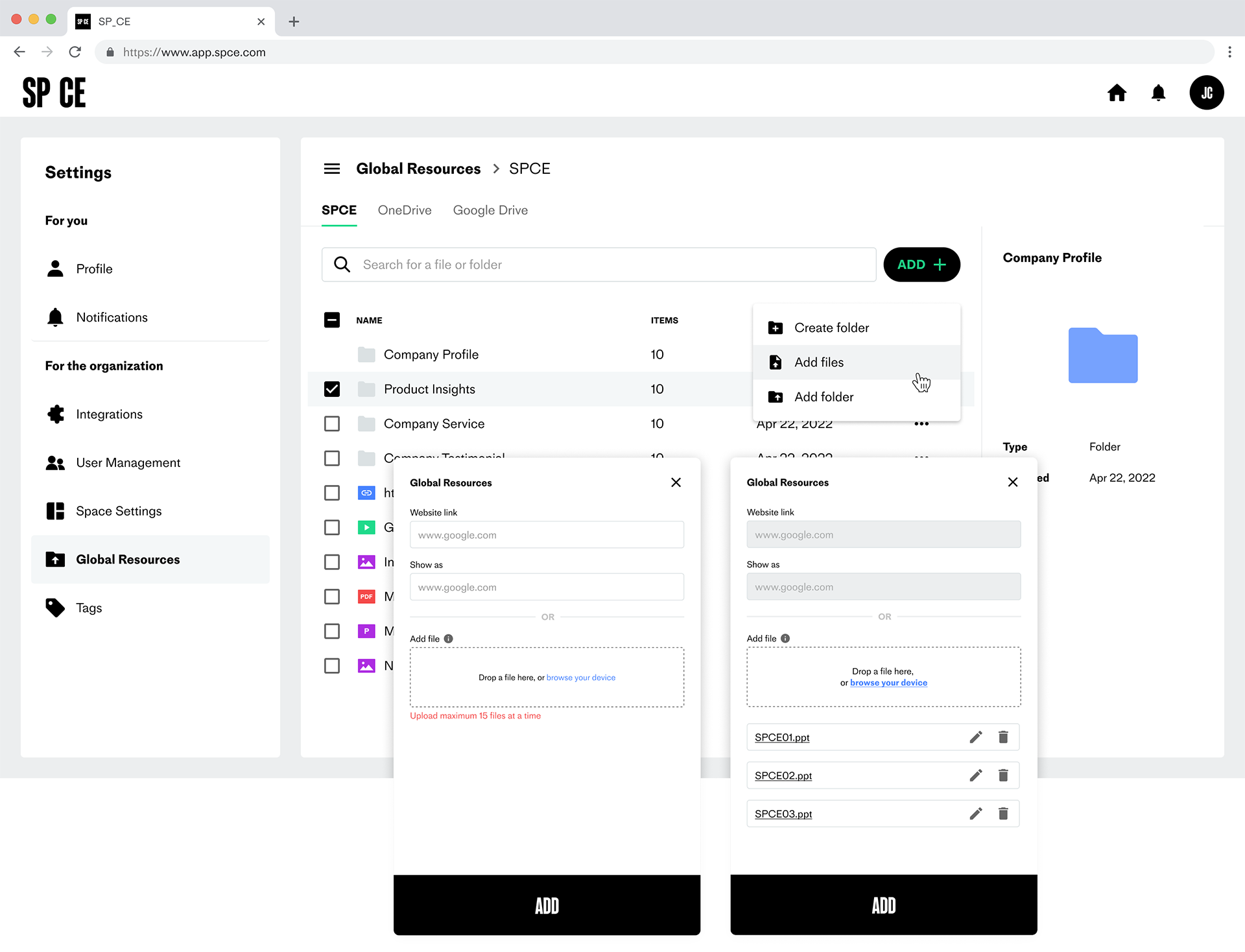
Create a folder
Click the ADD+ button and give the folder a title.
Upload files
When you have created the folder structure, you can populate it with the following supported file types.
- Go to the folder where you want to add files and click on the ADD+ button
- Choose if you want to add the file with a link, drag-and-drop, or by browsing your device.
- Up to 15 files can be added at a time.
Upload folders
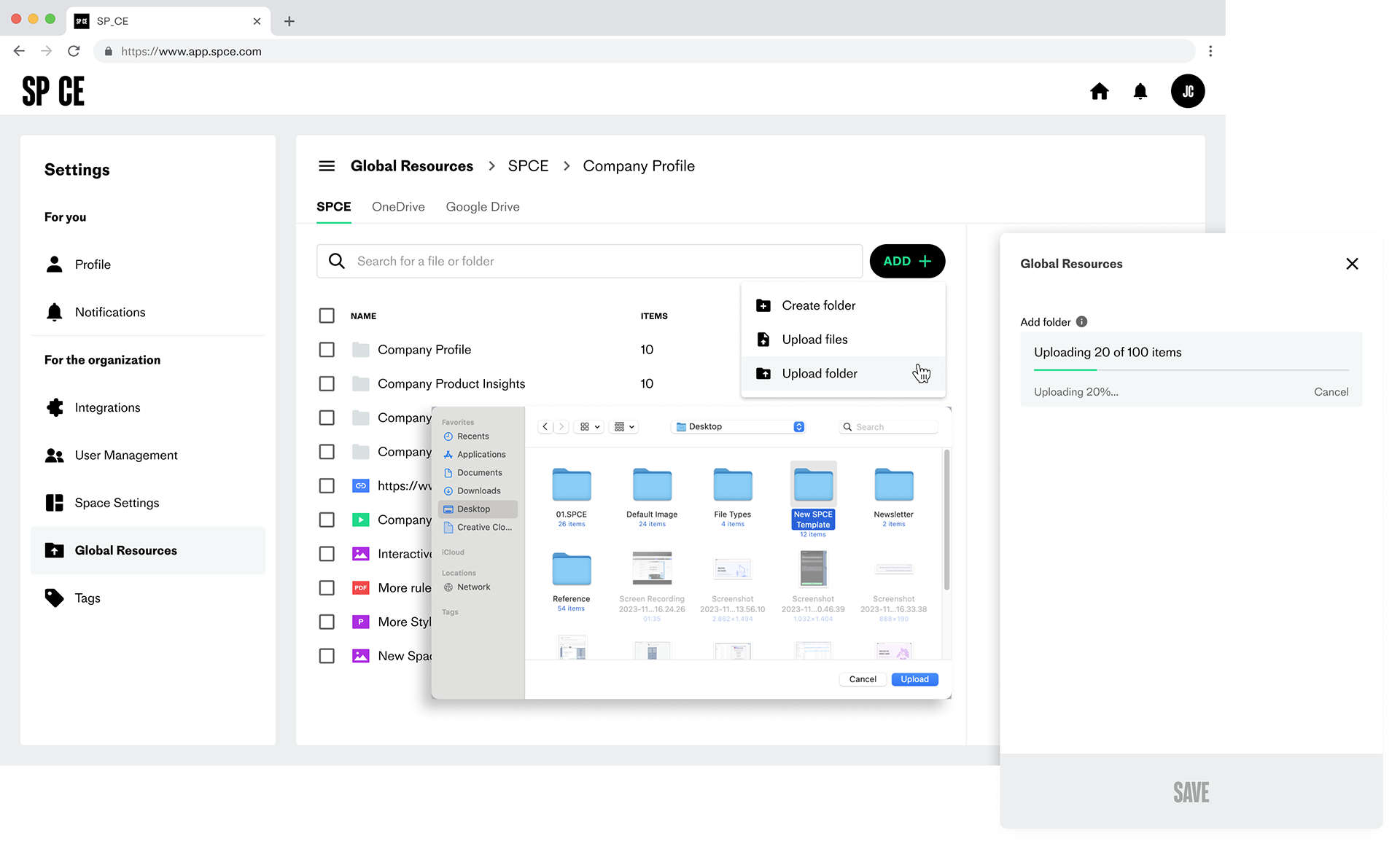
You can upload an entire folder with subfolders and files .
- Go to the folder where you want to add files and click on the ADD+ button
- Choose if you want to add the folder with drag-and-drop, or by browsing your device.
- One folder can be added at a time, but that folder can contain subfolders. Maximum upload size is 50 GB.
Upload a new version of a file
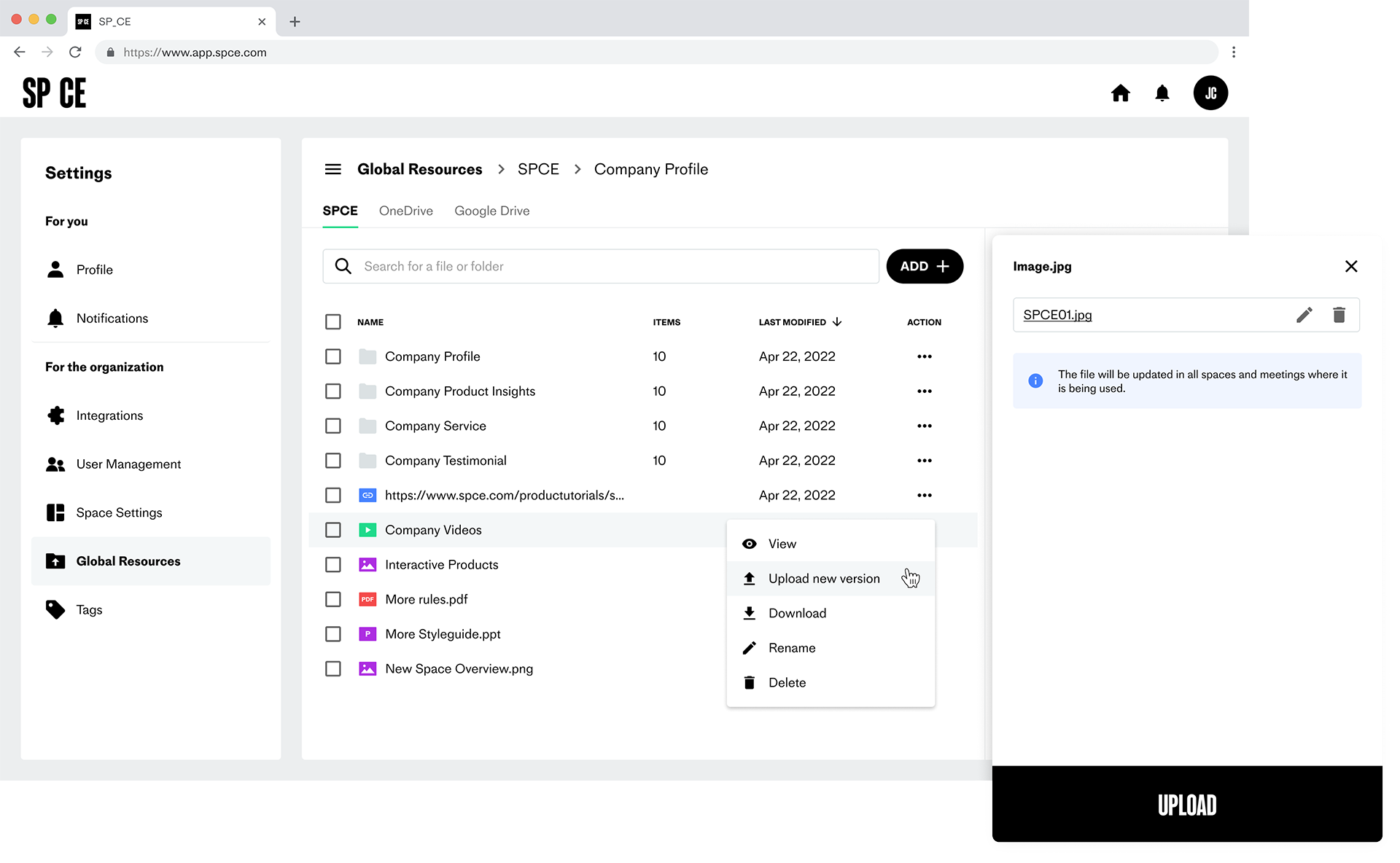
To replace an existing file with a new version:
- Click on the file menu (…).
- Choose “Upload new version.”
- Select the new version of the file from your local machine.
- When you click “Upload,” the file will be updated to the new version in all spaces and templates where it is being used.
- Hosts of those spaces and templates will be notified that there is a new version of the file available.
Please note that the new file version must have the same title and type as the previous one.
For users
Add a file in the space
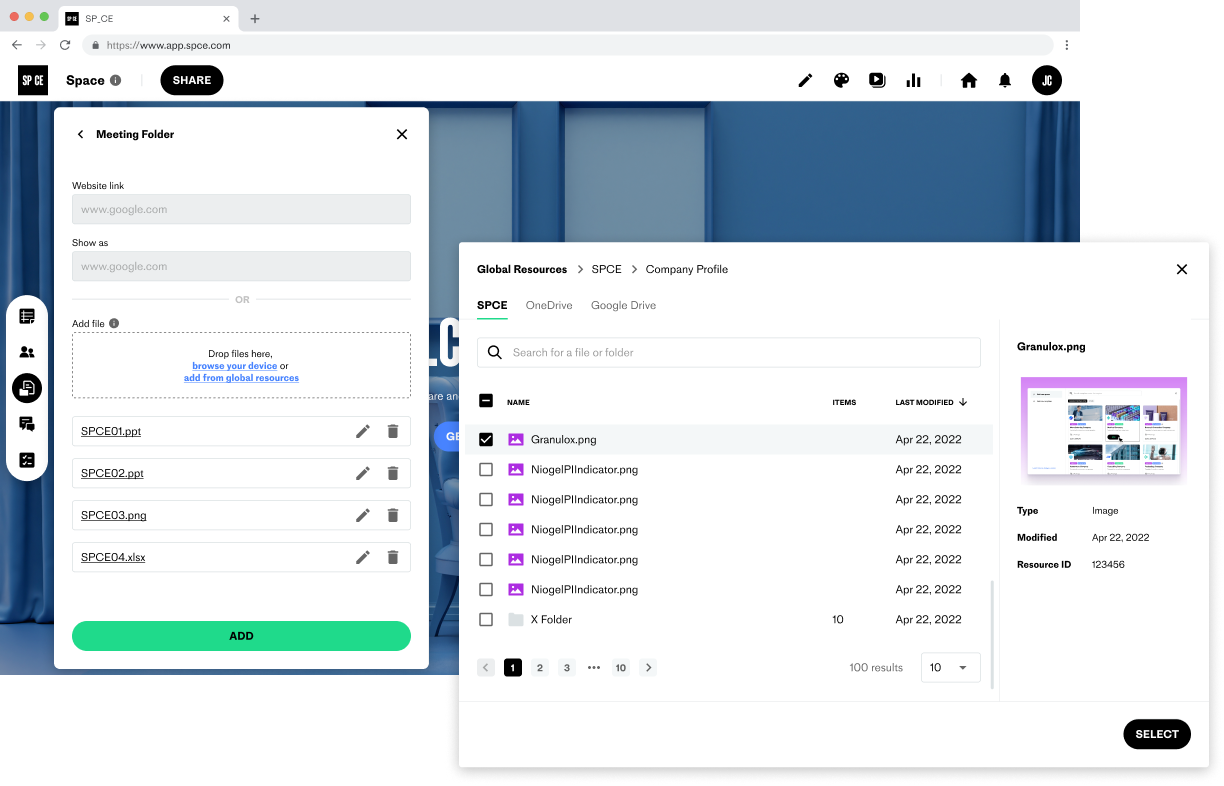
To add a file from Global Resources in the space:
- Open the resource panel.
- Click on “ADD+” and select “Add files”.
- Choose “Add from Global Resources.”
- Select the file(s) in the pop-up. Up to 15 files can be added at a time.
- Click the “ADD” button.
- The selected files are added to the resource panel in the space.
Add a file in the CMS
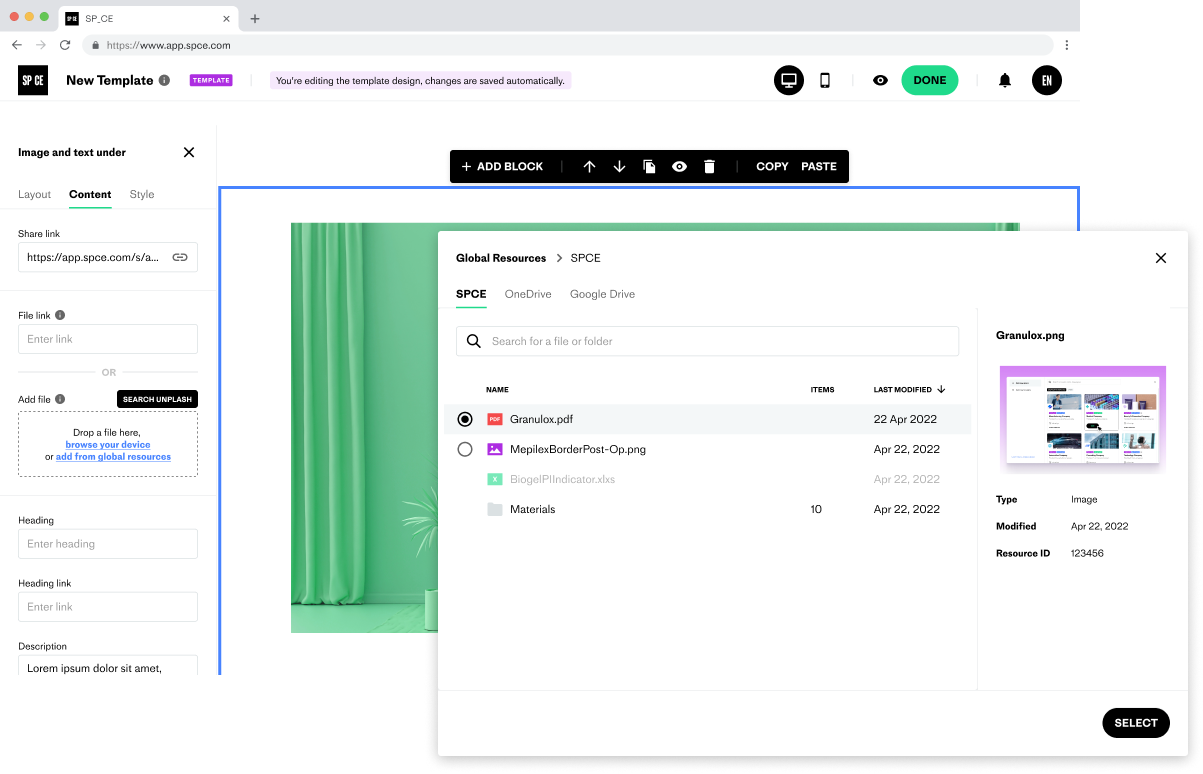
To add a file from Global Resources in the CMS:
- Click on the block you want to add a file in.
- Select the content tab.
- Locate the file filed in the panel
- Choose “Upload from global resources”
- Select the file in the pop-up.
- Click the “ADD” button.
- The selected file is added to the block in the CMS.
Add a file in the Meeting Agenda
To add a file from global resources to the presentation agenda:
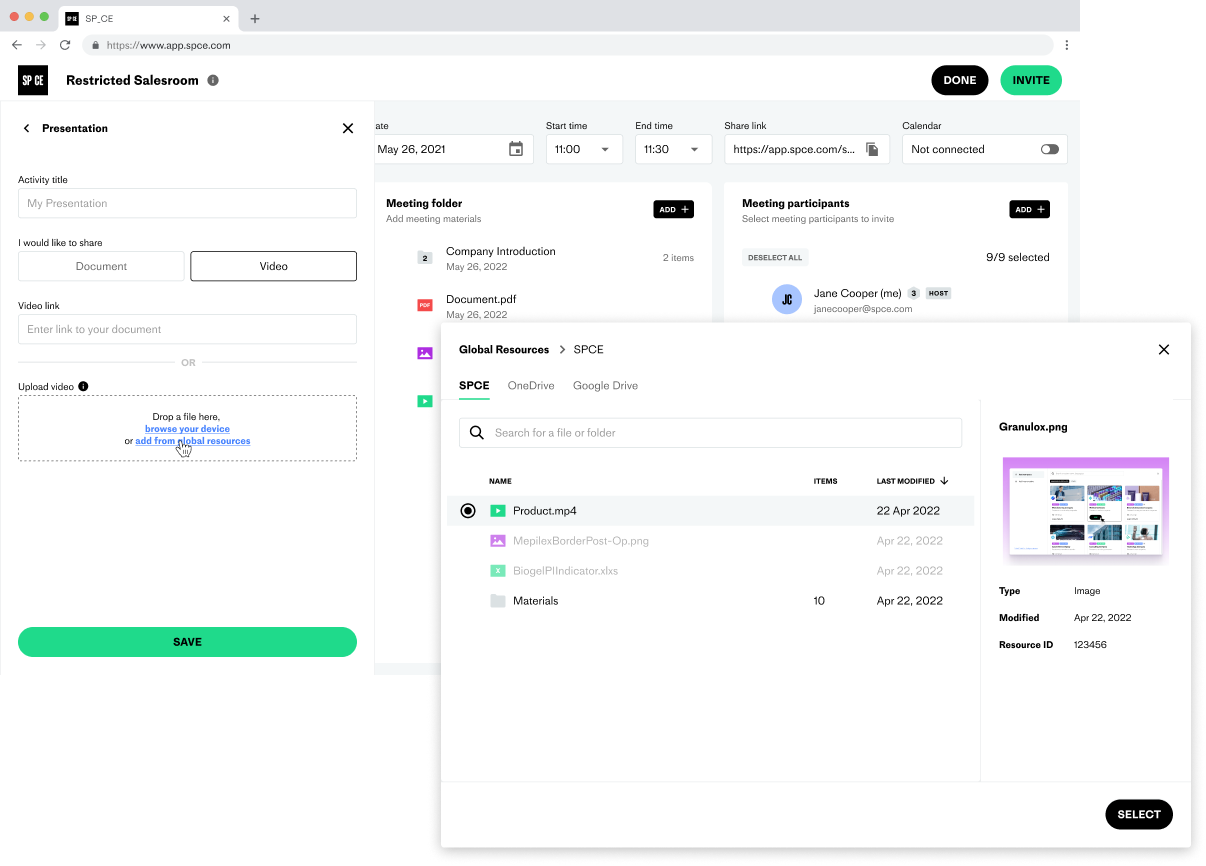
- Choose “Add from global resources”.
- Select the file you want to add in the pop-up.
- Click the “ADD” button.
- The file is added to your presentation point in the agenda.